Quick Answer
Pixel density depends on resolution and screen size together. At desk distance, ~90 PPI looks pixelated, ~110 PPI is good, and ~140-160 PPI or higher looks very sharp. The most common sweet spots are 24" 1080p (~92 PPI), 27" 1440p (~109 PPI), and 32" 4K (~138 PPI). PPI is calculated as the diagonal pixel count divided by the diagonal screen size in inches: PPI = √(width² + height²) / diagonal inches.
What to test, and what to replace it with
These tools exist to tell you whether a screen is worth keeping. If it is not, these are the panels worth running the same tests on instead.
 LG C4 65 in OLED evo
The panel most of these test patterns are written against. OLED is where the dead-pixel and uniformity tests actually matter.
Check price on Amazon → Samsung S90F 65 in OLED
The main alternative to the C4 at the same size, and the one worth running the same tests on before you keep it.
Check price on Amazon →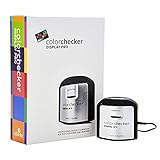 Calibrite Display Pro Colorimeter
Test patterns tell you something is wrong. A colorimeter tells you by how much, and fixes it.
Check price on Amazon → Dell UltraSharp U2722D
The safe QHD desk monitor when a test turns up a panel you do not want to keep.
Check price on Amazon →As an Amazon Associate we earn from qualifying purchases, at no extra cost to you. Prices change, so check before buying.
PPI by Screen Size & Resolution (16:9)
| Screen Size | 1080p 1920×1080 |
1440p / QHD 2560×1440 |
4K UHD 3840×2160 |
5K 5120×2880 |
|---|---|---|---|---|
| 24 inch | 92 PPI | 122 PPI | 184 PPI | — |
| 27 inch | 82 PPI | 109 PPI | 163 PPI | 218 PPI |
| 32 inch | 69 PPI | 92 PPI | 138 PPI | — |
| 42 inch | — | — | 105 PPI | — |
| 48 inch | — | — | 92 PPI | — |
"—" marks combinations that are uncommon or do not exist in shipping monitors. PPI values are rounded to the nearest whole number.
PPI for Common Ultrawides
| Screen Size | Resolution | Aspect Ratio | PPI |
|---|---|---|---|
| 34 inch ultrawide | 3440 × 1440 | 21:9 | 110 PPI |
| 38 inch ultrawide | 3840 × 1600 | 21:9 | 110 PPI |
Both popular ultrawide formats land near 110 PPI, the same perceived sharpness as a 27-inch 1440p flat monitor.
Sharpness Guideline
What each PPI range looks like at desk distance
- ●~90 PPI and below: Visibly pixelated up close. Individual pixels and slightly jagged text are noticeable.
- ●~110 PPI: Good. Clean enough for most people at normal viewing distance, and usable at 100% scaling.
- ●~140-160+ PPI: Very sharp, "retina-like." Pixels become hard to distinguish at typical distances.
- ●Above ~150 PPI: Text and UI elements get small; display scaling (125-200%) is usually needed for comfortable reading.
The PPI formula
Pixel density is pure geometry, using the Pythagorean theorem to find the diagonal pixel count:
Worked example, 27" 1440p:
- √(2560² + 1440²) = √(6,553,600 + 2,073,600) = √8,627,200 ≈ 2937 px diagonal
- 2937 / 27 ≈ 109 PPI
This measures display pixel density. It is the standard Pythagorean PPI calculation, independent of viewing distance.
Picking a Size and Resolution
Best value sharp desktop: 27" 1440p (~109 PPI)
The most popular gaming and productivity sweet spot. Sharp enough at 100% scaling, easy to drive at high refresh rates, and the widest model selection.
Maximum desktop clarity: 27" or 32" 4K (163 / 138 PPI)
27" 4K is extremely crisp (163 PPI) but usually needs scaling; 32" 4K (138 PPI) balances sharpness with a large, scaling-friendly workspace for editing and text.
Budget / first monitor: 24" 1080p (~92 PPI)
Affordable and easy to drive, but on the soft side. Avoid 32" 1080p (69 PPI) and 27" 1080p (82 PPI), which look noticeably pixelated.
Immersive ultrawide: 34" or 38" (~110 PPI)
Both land at the same ~110 PPI as 27" 1440p, so you get extra horizontal workspace without sacrificing per-inch sharpness.
Big-screen / TV-as-monitor: 42-48" 4K (105 / 92 PPI)
A 42" 4K is about 105 PPI and a 48" 4K drops to ~92 PPI, so these large OLED-style displays look best when you sit a bit farther back than a normal desk distance.
Frequently Asked Questions
PPI (pixels per inch) is a display's pixel density. It is calculated with the Pythagorean theorem: PPI equals the square root of (horizontal pixels squared plus vertical pixels squared), divided by the diagonal screen size in inches. For example, a 27-inch 1440p (2560x1440) monitor has a diagonal pixel count of about 2937, so 2937 / 27 = roughly 109 PPI.
A 27-inch 1440p (2560x1440) monitor has a pixel density of about 109 PPI. This is widely considered the sweet spot for desktop use: sharp enough to look clean at normal viewing distance without needing display scaling.
A 32-inch 4K (3840x2160) monitor has a pixel density of about 138 PPI. That is noticeably sharper than 27-inch 1440p (109 PPI) and produces crisp text, though many users apply around 125 to 150 percent scaling for comfortable reading.
At a typical desk viewing distance, roughly 90 PPI looks visibly pixelated, about 110 PPI is good, and 140 to 160 PPI or higher looks very sharp or retina-like. Above about 150 PPI, on-screen elements get small enough that display scaling is usually needed to keep text readable.
27-inch 1440p is sharper. A 24-inch 1080p panel is about 92 PPI, while a 27-inch 1440p panel is about 109 PPI. The 1440p display packs more pixels into each inch, so text and fine detail look cleaner despite the larger screen.
A 34-inch ultrawide at 3440x1440 has a pixel density of about 110 PPI, essentially the same sharpness as a 27-inch 1440p flat monitor. A 38-inch ultrawide at 3840x1600 is also about 110 PPI.
Affiliate Disclosure: This page contains affiliate links. We may earn a commission if you purchase through these links at no additional cost to you. We recommend products based on published specifications and verified owner reviews rather than hands-on testing.