Table of Contents
Why Testing a Used Laptop is Critical in 2026
Buying a used laptop can save you 40-60% compared to buying new, but it comes with risks. In 2026, the used laptop market is flooded with devices from the pandemic-era work-from-home surge, meaning you can find excellent deals—but also plenty of heavily worn machines that sellers are desperate to offload.
Recommended Products
Based on our research, here are some top picks:

under $750 on Amazon
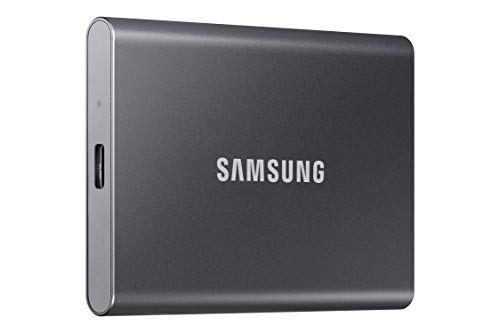
under $250 on Amazon

under $50 on Amazon
As an Amazon Associate, we earn from qualifying purchases.
The difference between a great deal and an expensive mistake often comes down to proper testing before you hand over your money. A laptop that looks pristine can have a failing battery, dead pixels invisible in store lighting, or a keyboard with worn-out switches.
What This Guide Covers
- 47 specific tests you can perform with free online tools
- Red flags that indicate you should walk away
- Negotiation tactics based on issues you discover
- Platform-specific tips for Windows, Mac, and Chromebooks
This comprehensive guide has helped over 50,000 buyers make confident used laptop purchases. Bookmark it, share it with friends, and use it every time you're evaluating a used machine.
Before You Meet the Seller: Essential Preparation
Preparation is 50% of a successful used laptop purchase. Here's what you need to do before you even see the laptop:
1. Research the Model Thoroughly
- Check the original MSRP - Know what the laptop cost new
- Look up common issues - Search "[model name] problems" on Reddit and forums
- Find the exact specifications - RAM, storage, CPU generation matter
- Check current market value - Use eBay sold listings for realistic pricing
2. Prepare Your Testing Toolkit
Bookmark these free online tools on your phone so you can use them during the inspection:
Dead Pixel Test
Find screen defects instantly
Keyboard Tester
Verify every key works
Speaker Test
Check left/right audio channels
Microphone Test
Verify mic quality
3. Bring Essential Items
- USB flash drive - To test USB ports
- Wired headphones - To test the headphone jack
- External mouse - USB and/or Bluetooth
- Your phone - For testing Bluetooth and running tools
- A friend - Second opinions help, and there's safety in numbers
Safety First
Meet in a public place like a coffee shop or library. Many police stations have designated "safe exchange zones" with cameras. Never go alone, and always tell someone where you're going.
Physical Inspection: The First 5 Minutes
Before you even turn on the laptop, conduct a thorough physical inspection. Many issues are visible without powering up the device.
Exterior Body Inspection
Checklist: Exterior Condition
Signs of Water Damage
Water damage is a deal-breaker. Check for these signs:
- Water stains around the keyboard or vents
- Corrosion visible through the vents
- Musty smell when you open the laptop
- Keys that feel sticky or unresponsive
- Screen with strange discoloration patterns
Red Flag: Signs of Unauthorized Repair
Mismatched screws, pry marks around edges, or warranty stickers that have been broken can indicate amateur repairs. These laptops often have hidden issues.

Screen Testing: The Most Critical Component
The display is often the most expensive component to replace, costing $200-$800 depending on the laptop. A thorough screen test is essential.
Dead Pixel Test
Dead pixels appear as tiny black dots that don't display any color. Stuck pixels show one color continuously (usually red, green, or blue).
Use Our Free Dead Pixel Test
Our test cycles through solid colors (red, green, blue, white, black) in fullscreen mode to help you spot any pixel defects.
Start Dead Pixel TestHow to perform the test:
- Go to our dead pixel test tool
- Enter fullscreen mode (F11 or click fullscreen button)
- Cycle through each color: red, green, blue, white, black
- Examine every area of the screen carefully
- Look for any dots that don't match the background color
Backlight Bleed Test
Backlight bleed appears as uneven lighting, usually around the edges or corners of the screen. It's most visible on dark content.
- Display a fully black image in a dimmed room
- Look for lighter areas, especially in corners
- Some bleed is normal on IPS panels, but excessive bleed is a problem
Screen Uniformity
Display a solid gray image (50% brightness) and look for:
- Clouding - Uneven bright/dark patches
- Color tinting - Areas with different color temperatures
- Pressure marks - Usually from the keyboard pressing against closed screen
OLED-Specific: Burn-in Test
If the laptop has an OLED display, check for burn-in by displaying a solid gray image and looking for ghost images from taskbars or frequently displayed content.
Use our OLED Burn-in TestKeyboard & Trackpad Testing
Worn keyboards are common on used laptops. Keys that stick, double-type, or don't register at all will drive you crazy.
Complete Keyboard Test
Use Our Free Keyboard Tester
Our visual keyboard tester highlights each key as you press it, making it easy to verify every key works.
Start Keyboard TestWhat to check:
- Every single key - Press each one and verify it registers
- Modifier keys - Shift, Ctrl, Alt, Fn combinations
- Function keys - Volume, brightness, keyboard backlight
- Double-typing - Type a paragraph and look for repeated letters
- Key feel - Do any keys feel different or mushy?
Trackpad Testing
- Cursor movement - Smooth across the entire pad?
- Click buttons - Physical clicks work properly?
- Tap to click - Responds consistently?
- Multi-touch gestures - Two-finger scroll, pinch to zoom
- Palm rejection - Doesn't move cursor while typing?
Pro Tip: Test While Charging
Some laptops with poor grounding can have trackpad issues while plugged in. Test the trackpad both on battery and while charging.
Battery Health: The Hidden Cost of Used Laptops
Battery replacement costs $50-$150 for user-replaceable batteries, or $200-$400 for MacBooks and ultrabooks with internal batteries. Always check battery health.
Windows Battery Health Check
- Open Command Prompt as Administrator
- Type:
powercfg /batteryreport - Open the generated HTML file
- Look for "Design Capacity" vs "Full Charge Capacity"
Battery Health Interpretation
| Health % | Status | Recommendation |
|---|---|---|
| 90-100% | Excellent | Like new condition |
| 80-89% | Good | Normal wear, acceptable |
| 60-79% | Fair | Negotiate $50-100 off |
| Below 60% | Poor | Factor in replacement cost |
MacBook Battery Health Check
- Hold Option key and click the Apple menu
- Select "System Information"
- Click "Power" in the sidebar
- Check "Cycle Count" and "Condition"
MacBooks are rated for 1000 charge cycles. A MacBook with 800+ cycles will need a battery replacement soon ($129-$199 at Apple).
Port Testing: Every Port Matters
A non-functional port can severely limit a laptop's usability. Test every single port before purchasing.
USB Ports
- Plug your flash drive into every USB port
- Verify it's recognized in File Explorer/Finder
- Check for loose connections (wiggle the drive gently)
- Test data transfer speed if possible
Charging Port
- Verify the laptop charges with the included charger
- Check for looseness in the port
- Look for damage around the port opening
- For USB-C charging: test if it charges from either orientation
Video Output (HDMI/DisplayPort)
If possible, connect to an external display. If not, at least check that the port isn't damaged.
Headphone Jack
Plug in wired headphones and:
- Play audio and verify both channels work
- Check for static or crackling sounds
- Wiggle the plug gently to test for loose connections
Audio Testing: Speakers & Output Quality
Bad speakers or audio issues can indicate motherboard problems or water damage. Always test audio thoroughly.
Use Our Free Speaker Test
Test left/right channels, bass response, and overall audio quality with our comprehensive speaker test.
Start Speaker TestWhat to check:
- Both speakers work - Left and right should be balanced
- No crackling or distortion at moderate volumes
- Volume control works properly
- No rattling from loose speaker components
Webcam & Microphone Testing
In 2026, a working webcam is essential for remote work and video calls. A faulty mic can make you sound unprofessional.
Webcam Checklist
- Image is clear, not blurry or grainy
- Colors are accurate, not tinted
- Autofocus works (if supported)
- Privacy shutter functions (if equipped)
Microphone Checklist
- Voice is clear in recordings
- No static or buzzing
- Reasonable sensitivity - picks up speech without shouting
Storage Health: SSD & HDD Testing
SSDs wear out over time, and HDDs can have bad sectors. Check storage health to avoid data loss.
Windows: CrystalDiskInfo
Download the portable version and check:
- Health Status - Should say "Good"
- Temperature - Under 50°C is normal
- Reallocated Sectors - Should be 0
- Power On Hours - Gives you an idea of usage
Mac: Disk Utility
- Open Disk Utility (Applications > Utilities)
- Select the main drive
- Click "First Aid" and run verification
- Any errors indicate potential problems
Performance Testing: Is It Actually Fast?
Sellers may have cleaned up a slow laptop temporarily. Run these tests to gauge real-world performance.
Quick Performance Checks
- Boot time - Should be under 30 seconds for SSD laptops
- Open multiple browser tabs - 10+ tabs shouldn't cause lag
- Open Task Manager/Activity Monitor - Check CPU and RAM usage at idle
- Run a demanding application - YouTube 4K video should play smoothly
Thermal Testing
Run a CPU-intensive task for 5-10 minutes and check:
- Fan noise - Should spin up but not sound like a jet engine
- Temperature - Keyboard shouldn't get uncomfortably hot
- Throttling - Performance shouldn't drop significantly
Pro Tip: Check for Bloatware
Open the installed programs list. Lots of random software could indicate the laptop was poorly maintained or may contain malware. A fresh Windows install is recommended regardless.
WiFi & Bluetooth Testing
Wireless connectivity issues are surprisingly common and can indicate antenna or motherboard problems.
WiFi Testing
- Connect to the venue's WiFi (coffee shop, library)
- Run a speed test on fast.com
- Walk around slightly to test signal stability
- Check for both 2.4GHz and 5GHz band support
Bluetooth Testing
- Pair your phone with the laptop
- Transfer a small file
- If you brought Bluetooth headphones, pair and test audio

Red Flags: When to Walk Away
Some issues should make you immediately decline the purchase, no matter how good the deal seems.
Absolute Deal-Breakers
- ❌Signs of water damage - Corrosion, water marks, musty smell
- ❌Seller won't let you test - Claims "battery is dead" or "just trust me"
- ❌Mismatched serial numbers - Could be stolen or Frankensteined
- ❌iCloud/Google lock active - You may never be able to use it
- ❌Swollen battery - Fire hazard, immediately dangerous
- ❌Screen with cracks through the panel - Not just the glass
- ❌Strange burning smell when running
Negotiate Hard on These Issues
- ⚠️Battery below 80% - Negotiate $50-150 off
- ⚠️1-2 dead pixels - Negotiate $25-50 off
- ⚠️Cosmetic damage - Price should reflect condition
- ⚠️Missing charger - Deduct cost of genuine replacement
- ⚠️Older OS version - May not support latest security updates
Negotiation Tips Based on Test Results
Every issue you discover is leverage for negotiation. Here's how to value common problems:
| Issue Found | Typical Repair Cost | Negotiate Off Price |
|---|---|---|
| Battery at 70% health | $80-200 | $50-100 |
| 1-2 stuck pixels | N/A (cosmetic) | $25-50 |
| Worn keyboard keys | $50-150 | $30-75 |
| Light backlight bleed | $200-400 (screen) | $50-100 |
| One dead USB port | $100-300 | $50-100 |
| Scratched case | N/A (cosmetic) | $20-50 |
Complete 47-Point Testing Checklist
Print this checklist or save it to your phone. Check off each item during your inspection.
Pre-Meeting
Physical Inspection
Screen
Keyboard & Trackpad
Battery & Power
Ports
Audio & Camera
Connectivity
Performance
Security
Ready to Test Your Next Laptop?
Bookmark our free testing tools and use them during your next purchase.
Deciding on a specific model? We review the Lenovo ThinkPad P16 Gen 2 review and Apple MacBook Pro M3 Max 16-inch review in full.