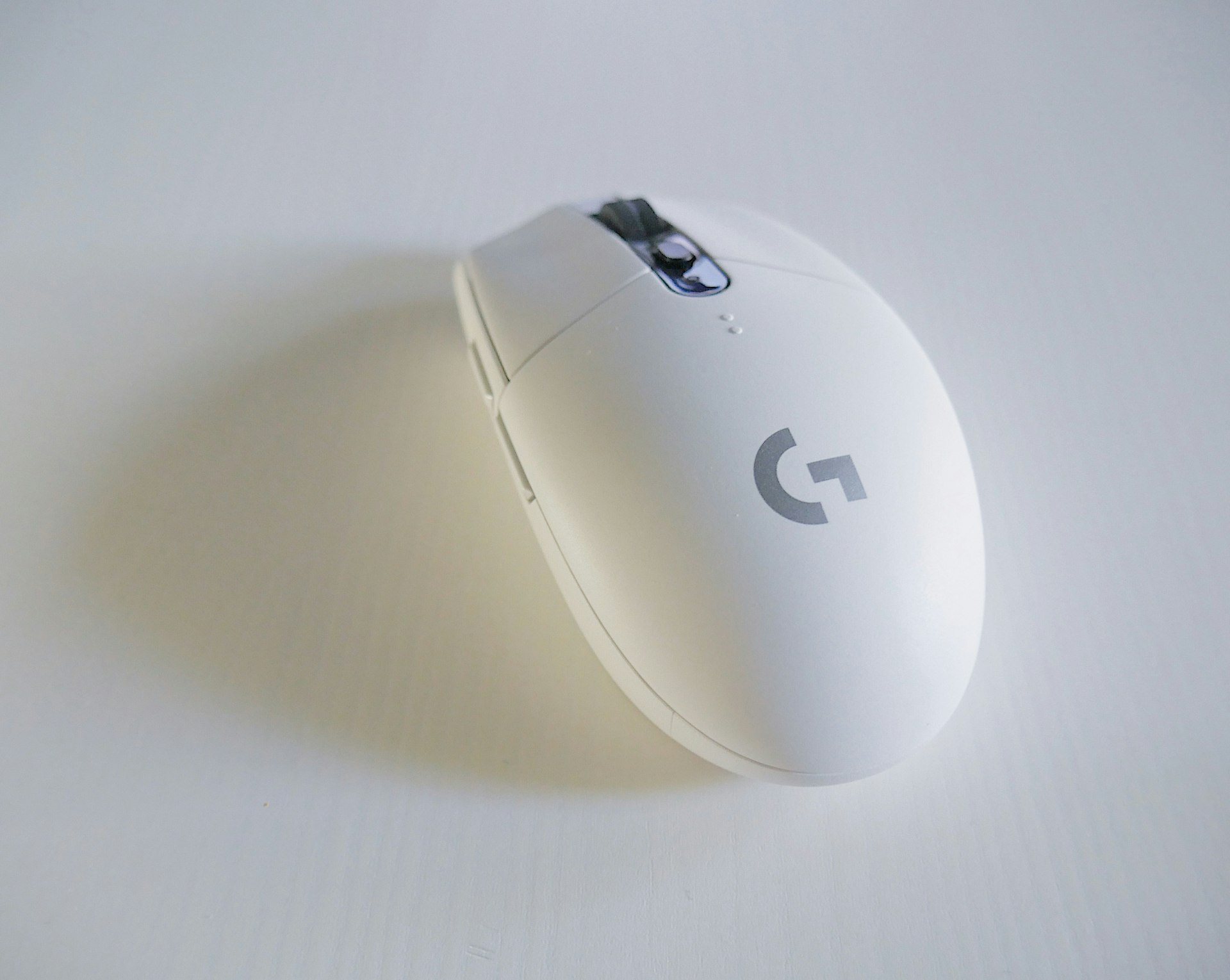
In 2026, wireless gaming peripherals have reached near-wired performance levels. Top wireless mice achieve sub-1ms latency, faster than many wired mice. But not all wireless tech is equal—understanding the differences can give you a competitive edge.
Recommended Products
Based on our research, here are some top picks:
Razer BlackWidow V4 Pro Keyboard -

under $250 on Amazon
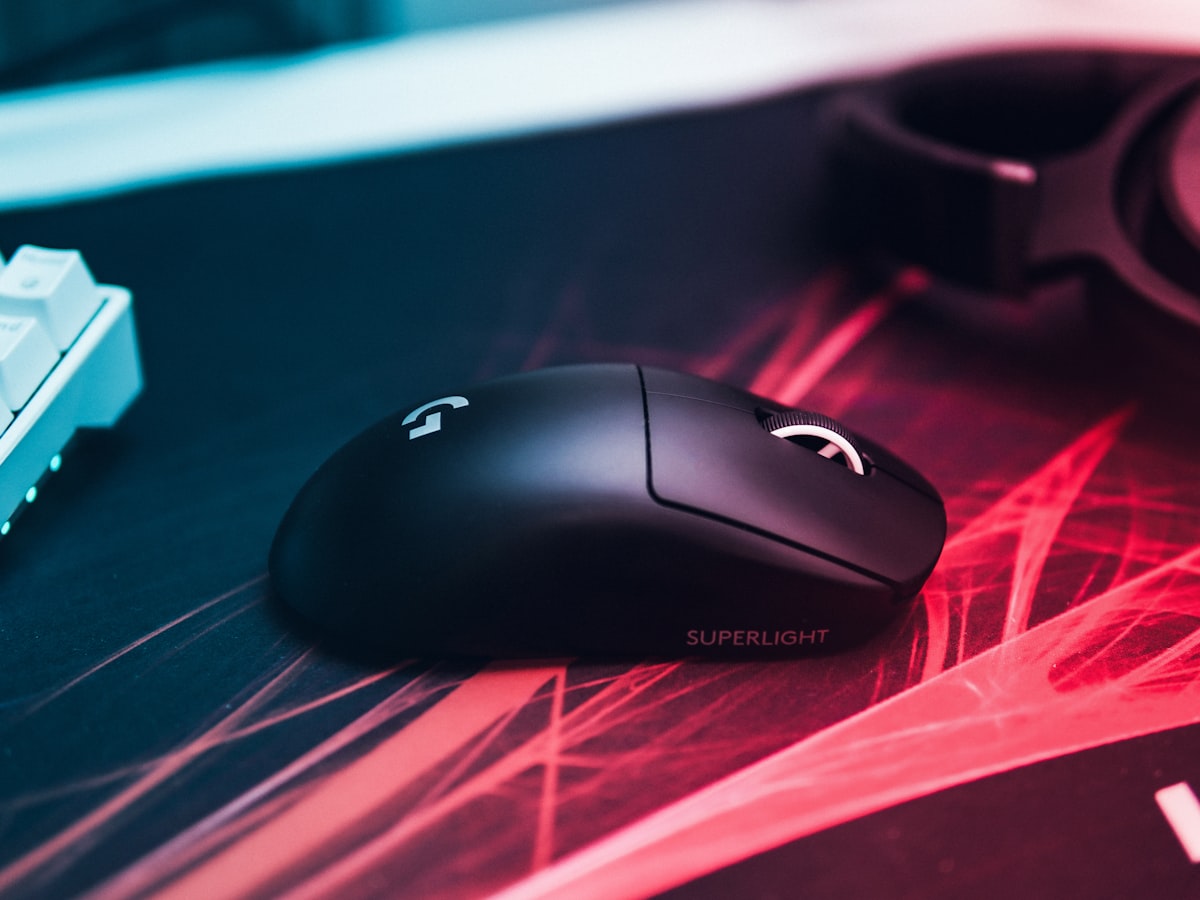
Logitech G PRO X Superlight 2 Mouse -

under $250 on Amazon
LG Ultragear Gaming Monitor -

under $500 on Amazon
PlayStation 5 Console -

under $750 on Amazon
As an Amazon Associate, we earn from qualifying purchases.
⚡ 2026 Reality Check
Modern 2.4GHz wireless gaming peripherals add only 0.5-1ms of latency compared to wired—imperceptible to humans. Bluetooth, however, still adds 10-30ms and isn't recommended for competitive gaming.
🧠 Understanding Input Latency

What Is Input Latency?
Input latency is the time between pressing a button/moving your mouse and seeing the result on screen. It consists of multiple components:
Peripheral
0.5-5ms
Wireless
0.5-30ms
USB Polling
0.125-1ms
Game Engine
1-20ms
Display
1-15ms
Excellent
<1ms
Competitive wireless
Good
1-5ms
Most 2.4GHz wireless
Noticeable
>10ms
Bluetooth, bad wireless
📡 Wireless Technologies Compared
| Technology | Latency | Polling Rate | Gaming? |
|---|---|---|---|
| 2.4GHz Proprietary (Gaming) | 0.5-2ms | 1000-8000Hz | ✅ Excellent |
| Lightspeed (Logitech) | <1ms | 1000-8000Hz | ✅ Excellent |
| HyperSpeed (Razer) | <1ms | 1000-8000Hz | ✅ Excellent |
| Bluetooth 5.3 LE | 5-15ms | 125-250Hz | ⚠️ Casual only |
| Bluetooth Classic | 15-30ms | ~125Hz | ❌ Not recommended |
| 2.4GHz Generic (Non-gaming) | 5-15ms | 125-500Hz | ⚠️ Budget casual |
💡 Why 2.4GHz Wins for Gaming
Gaming-grade 2.4GHz uses proprietary protocols optimized for low latency with dedicated frequencies, error correction, and minimal overhead. Bluetooth prioritizes power efficiency and universal compatibility over speed.
🖱️ Wireless Mouse Latency
2026 Top Performers (RTings/Optimum Tech Tested)
Logitech G Pro X Superlight 2
8000Hz polling, 60g, HERO 2 sensor
Razer DeathAdder V3 Pro
8000Hz HyperPolling, 63g, Focus Pro sensor
Razer Viper V3 Pro
8000Hz, 54g, Focus Pro 35K
Pulsar X2 V2 Mini
4000Hz, 52g, PAW3395
⚠️ Polling Rate Reality
8000Hz polling reduces latency by ~0.6ms vs 1000Hz. The difference is real but barely perceptible. For most gamers, 1000Hz is perfectly fine—4000-8000Hz is for pros optimizing every millisecond.
⌨️ Wireless Keyboard Latency
Wireless keyboards have improved dramatically, but they still lag behind mice in adoption for competitive gaming. Here are the lowest-latency options:
Keychron Q1 HE
Hall effect switches, rapid trigger, wired or wireless
Razer BlackWidow V4 Pro (75%)
HyperSpeed wireless, 8000Hz wired option
Logitech G915 TKL Lightspeed
Lightspeed wireless, low-profile GL switches
Pro Tip: For competitive gaming, keyboard latency matters less than mouse latency. Most pros still prefer wired keyboards for reliability, not latency—the difference is negligible for typing inputs.
🎮 Wireless Controller Latency
Xbox Elite Series 2 Core (USB)
Wired mode for lowest latency
Xbox Wireless (2.4GHz adapter)
Xbox Wireless Adapter for PC
DualSense (USB)
PS5 controller wired to PC
DualSense (Bluetooth)
Wireless Bluetooth connection
Switch Pro Controller (Bluetooth)
Wireless via Bluetooth
✅ Controller Recommendations
For PC gaming, use Xbox controllers with the official Xbox Wireless Adapter (not Bluetooth). For PS5/DualSense, use USB cable for competitive games. Bluetooth is fine for casual single-player.
🔬 How to Test Latency Yourself
Method 1: High-Speed Camera (Most Accurate)
Film your input device and screen at 240fps+ (iPhone slow-mo works). Count frames between button press and on-screen response.
Accuracy: ~4ms (at 240fps, each frame = 4.16ms)
Method 2: NVIDIA LDAT / Reflex Latency Analyzer
Hardware tool that measures total system latency with photodiode sensor. Most accurate consumer method.
Requires compatible monitor (like ASUS VG259QM) or NVIDIA LDAT device.
Method 3: Software Tools
- Mouse Tester by Microe: Measures polling rate and sensor performance
- NVIDIA FrameView: Measures PC latency with Reflex support
- Our Keyboard Test: Tests key registration and rollover
⚡ Tips to Reduce Wireless Latency
✅ Do
- • Use 2.4GHz dongle, not Bluetooth
- • Keep dongle close (use USB extension)
- • Enable high polling rate in software
- • Keep firmware updated
- • Use USB 3.0 ports for dongle
- • Enable NVIDIA Reflex in games
❌ Don't
- • Put dongle behind PC tower
- • Use Bluetooth for competitive gaming
- • Use USB hubs for gaming peripherals
- • Ignore interference sources (WiFi routers)
- • Let battery go below 20%
🎯 Dongle Placement Tip
Use a USB extension cable to place the wireless dongle on your desk, directly in line-of-sight with your mouse. This alone can reduce latency and improve stability significantly.
🏆 2026 Low-Latency Recommendations
Best Wireless Gaming Mice
Best Wireless Keyboards
Test Your Input Devices
Use our free tools to check keyboard rollover, polling rate, and input registration.