
A multi-monitor setup can transform your productivity, giving you more screen real estate for coding, content creation, financial analysis, or immersive gaming. Studies show multi-monitor setups can increase productivity by 20-30%.
📊 Quick Stats
Users report completing tasks faster, reducing window switching, and maintaining better focus with dedicated screens for different applications.
Why Use Multiple Monitors?

For Productivity
- ✅ Reference docs on one screen, work on another
- ✅ Email/Slack visible while working
- ✅ Video calls without minimizing work
- ✅ Code editor + preview + terminal
For Gaming
- ✅ Immersive ultra-wide field of view
- ✅ Game on main, Discord on side
- ✅ Stream dashboard visible while playing
- ✅ Sim racing with peripheral vision
Layout Options
🖥️🖥️ Side-by-Side Dual
Most common setup. Best for general productivity. Desk width needed: 48"+ for two 27" monitors.
🖥️ Stacked Dual
One above the other. Saves horizontal space. Great for limited desk width.
🖥️🖥️🖥️ Triple Side-by-Side
Maximum screen real estate. Best for sim racing, trading, video editing. Desk width: 72"+
🖥️📱 Primary + Portrait Secondary
Landscape main + rotated secondary. Excellent for coding and documents.
GPU Requirements
| GPU | Max Displays | Best For |
|---|---|---|
| RTX 4090/4080 | 4 | 4K 144Hz gaming × 3 |
| RTX 4070/4060 | 4 | 4K 60Hz productivity |
| RX 7900 XTX/XT | 4 | 8K + multi-monitor |
| Apple M3 Pro/Max | 3-4 | Pro workflows |
⚠️ Bandwidth Note
Running three 4K 144Hz monitors requires massive bandwidth. For productivity at 60Hz, any modern GPU handles triple 4K easily.
Mounting Solutions
Dual Monitor Arms
Ergotron LX Dual - Premium quality, 25lb capacity per arm
under $500 on Amazon
Check Price →Triple Monitor Stands
VIVO Premium Triple Monitor Stand - Free-standing base, no clamp needed
under $100 on Amazon
Check Price →💡 VESA Compatibility
Most monitor arms use VESA mounting (75x75mm or 100x100mm). Check your monitors have VESA holes on the back.
Windows Display Setup
Step 1: Open Display Settings
Right-click desktop → Display settings, or press Win + P
Step 2: Arrange Monitors
Drag monitors to match physical layout. Click "Identify" to see numbers on each screen.
Step 3: Configure Each Display
Set resolution (native), scale (100-150%), orientation (landscape/portrait), and refresh rate.
Pro Tip: Keyboard Shortcuts
Win + Shift + Arrow moves window between monitors. Win + Arrow snaps windows.
macOS Display Setup
System Settings → Displays
Click "Arrange" to drag displays into position. White menu bar indicates primary display.
⚠️ Apple Silicon Limits
M1/M2 base chips support only one external display. M1/M2 Pro supports 2, Max supports 3-4. DisplayLink docks can add more with limitations.
Color Calibration & Matching
Manual Matching (Free)
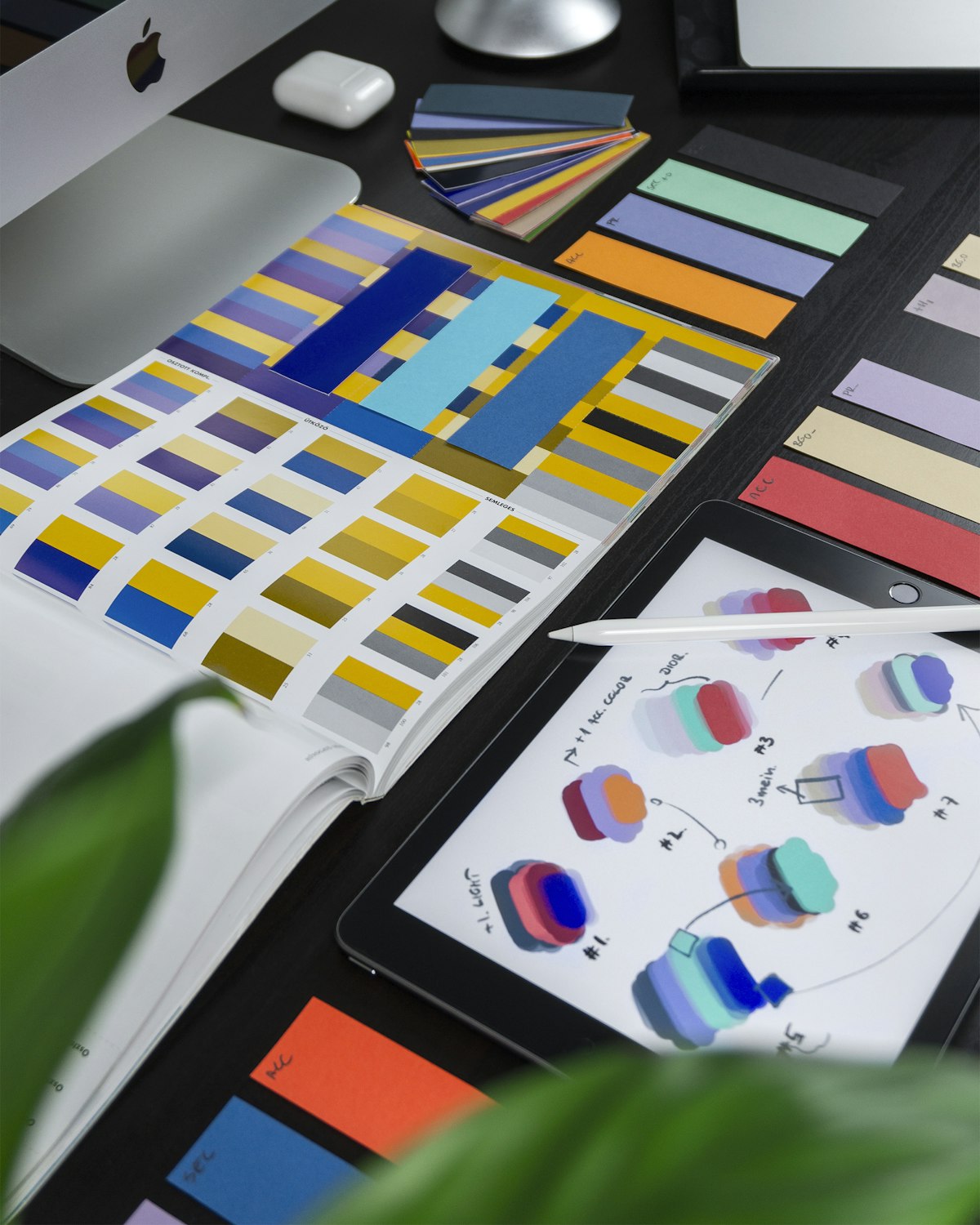
- • Set all monitors to 6500K color temp
- • Match brightness levels
- • Use same picture mode (sRGB)
- • Use our calibration tools
Hardware Calibration (Best)
Datacolor SpyderX Pro or Calibrite ColorChecker
under $500 on Amazon
Shop Calibrators →Multi-Monitor Gaming
NVIDIA Surround
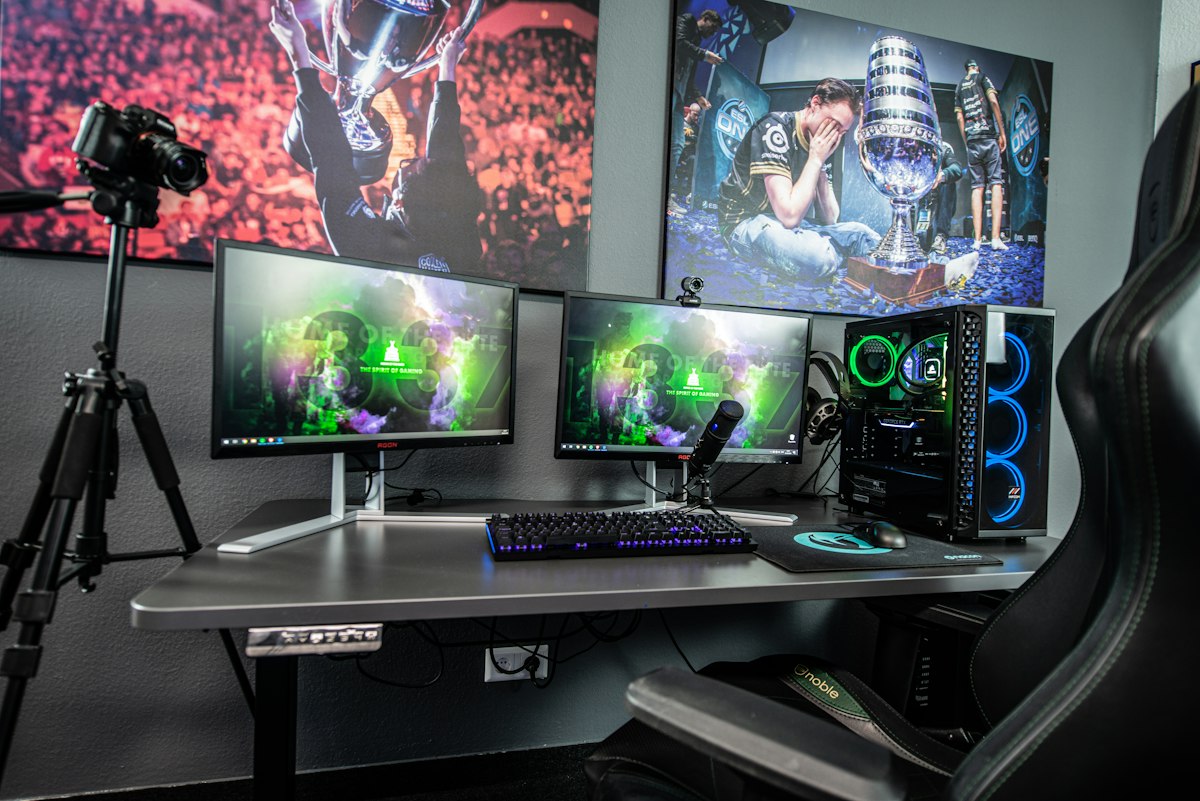
- 1. NVIDIA Control Panel → Configure Surround
- 2. Span displays with Surround
- 3. Adjust bezel correction
AMD Eyefinity
- 1. AMD Adrenalin → Display → Eyefinity
- 2. Select monitors for group
- 3. Set bezel compensation
Not all games support ultra-wide resolutions. Check PCGamingWiki for compatibility.
Productivity Tips
Windows Tools
- PowerToys FancyZones: Custom snap zones
- DisplayFusion: Multi-monitor taskbars
macOS Tools
- Rectangle: Free window snapping
- Magnet: Paid, excellent management
Workflow Ideas
Recommended Monitors
ASUS VG27AQ1A
27" 1440p 170Hz IPS - Thin bezels, great for triple
under $250 on Amazon
Check Price →Test Your Monitors
Check for dead pixels, color uniformity, and more on all your displays.