
Your router is the backbone of your home network, affecting everything from video call quality to gaming latency to smart home reliability. With WiFi 7 hitting the market and mesh systems becoming mainstream, knowing how to properly test network equipment before buying is more important than ever.
Recommended Products
Based on our research, here are some top picks:
TP-Link AX3000 WiFi 6 Router -

Under $100
NETGEAR Orbi WiFi 6 Mesh -
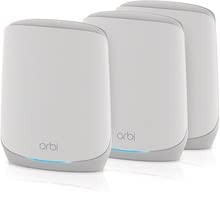
Under $250
As an Amazon Associate, we earn from qualifying purchases.
This guide covers everything from speed testing methodology to coverage mapping, mesh system evaluation to security verification - ensuring you get the performance you're paying for.
WiFi Standards Explained
Understanding WiFi generations helps you know what you're actually getting and whether your devices can take advantage of newer standards.
| Standard | Name | Max Speed | Bands | Best For |
|---|---|---|---|---|
| 802.11n | WiFi 4 | 600 Mbps | 2.4GHz | Legacy devices |
| 802.11ac | WiFi 5 | 3.5 Gbps | 2.4/5GHz | Budget setups |
| 802.11ax | WiFi 6 | 9.6 Gbps | 2.4/5GHz | Current standard |
| 802.11ax | WiFi 6E | 9.6 Gbps | 2.4/5/6GHz | New devices |
| 802.11be | WiFi 7 | 46 Gbps | 2.4/5/6GHz | Future-proof |
WiFi 6E Advantages
- • 6GHz band = less congestion
- • Lower latency for gaming
- • More available channels
- • No interference from neighbors
- • Best for dense device environments
WiFi 7 Advantages
- • Multi-Link Operation (MLO)
- • 320MHz channel width
- • 4K QAM modulation
- • Near-zero latency
- • True multi-gig wireless
Reality Check: Your Devices Matter
A WiFi 7 router won't make your WiFi 5 laptop faster. You only get the benefits of newer standards when both the router AND your devices support them. Check what your phones, laptops, and smart devices actually support before paying premium for the latest WiFi standard.
Speed Testing
Proper speed testing requires methodology. Random speed tests don't give you the full picture of router performance.
Speed Test Methodology
-
1
Know your ISP speed: Test with ethernet directly to modem first. This is your baseline maximum.
-
2
Test at multiple locations: Same room as router, one room away, two rooms away, and furthest point.
-
3
Test multiple times: Run 3-5 tests at each location and average the results.
-
4
Test each band separately: 2.4GHz, 5GHz, and 6GHz (if applicable) perform differently.
-
5
Test during peak hours: Neighbor interference peaks in evenings.
Recommended Test Tools
- • speedtest.net: Most popular, good servers
- • fast.com: Netflix's tool, simple
- • iPerf3: LAN testing (advanced)
- • WiFi Analyzer: Check channel congestion
- • NetSpot: Coverage heat mapping
What to Record
- • Download speed: Most important for streaming
- • Upload speed: Important for video calls
- • Ping/Latency: Critical for gaming
- • Jitter: Connection stability
- • Signal strength: dBm at each location
Realistic Speed Expectations
WiFi overhead means you'll never get 100% of rated speeds:
Same Room
70-80% of max
1 Room Away
50-70% of max
2 Rooms Away
30-50% of max
2.4GHz vs 5GHz
2.4 = range, 5 = speed
Coverage Testing
Coverage is just as important as peak speed. A router that's blazing fast in one room but dead in another isn't serving your needs.
Coverage Heat Mapping
Create a coverage map of your home:
- 1. Download WiFi Analyzer (Android) or NetSpot (Mac/Windows)
- 2. Draw or upload your floor plan
- 3. Walk to each room and mark signal strength
- 4. Note problem areas (dead zones)
- 5. Test both 2.4GHz and 5GHz coverage separately
-30 to -50 dBm
Excellent
Full speed capability
-50 to -70 dBm
Good
Reliable for most uses
-70 to -90 dBm
Poor
Slow, unreliable
Coverage Killers
Concrete walls: Major signal blocker. Mirrors/glass: Reflect signals unpredictably. Appliances: Microwaves interfere with 2.4GHz. Fish tanks: Surprisingly effective signal blockers. Metal objects: Block and reflect signals.
Mesh vs Single Router
Choosing between a powerful single router and a mesh system depends on your home layout, size, and needs.
Single Router Best For:
- ✓ Apartments and small homes (<1,500 sq ft)
- ✓ Single-floor layouts
- ✓ Central router placement possible
- ✓ Maximum performance priority
- ✓ Budget-conscious users
Mesh System Best For:
- ✓ Large homes (>2,000 sq ft)
- ✓ Multi-floor homes
- ✓ Thick walls or difficult layouts
- ✓ Consistent coverage priority
- ✓ Many devices throughout home
Coverage Comparison
High-End Router
- • Coverage: 2,500-3,500 sq ft
- • Single point of failure
- • Best speeds near router
- • More powerful individual radios
3-Pack Mesh System
- • Coverage: 4,500-6,500 sq ft
- • Redundancy built in
- • Consistent speeds everywhere
- • Seamless roaming
Mesh System Testing
Mesh systems have unique characteristics that require specific testing beyond standard router evaluation.
Backhaul Performance
The connection between mesh nodes (backhaul) is critical:
- • Wired backhaul: Best performance - use ethernet if possible
- • Wireless backhaul: Should use dedicated band (tri-band ideal)
- • Test: Speed at satellite node should be 50%+ of main node
- • Red flag: Satellite nodes significantly slower = poor backhaul
Seamless Roaming Test
Verify smooth handoff between nodes:
- 1. Start a video call or continuous ping
- 2. Walk from main node area to satellite node area
- 3. Note any disconnections or stuttering
- 4. Good mesh: Seamless transition, no drops
- 5. Poor mesh: Noticeable pause or reconnection
Node Placement Testing
Optimal satellite placement:
- • Place where you still have good signal from previous node
- • Don't place in dead zones - they need good connection too
- • Elevated placement (shelf, table) beats floor level
- • Avoid placing inside cabinets or behind TVs
- • Most apps show connection quality between nodes
Top Mesh Systems 2026
Budget
- • TP-Link Deco XE75
- • Amazon eero 6+
- • Google Nest WiFi Pro
Premium
- • ASUS ZenWiFi BQ16 Pro
- • Netgear Orbi 970
- • TP-Link Deco BE85
Security Verification
Router security protects your entire network. Verify these settings are available and properly configured.
Essential Security Features
- ✓ WPA3 encryption support
- ✓ Automatic firmware updates
- ✓ Guest network capability
- ✓ Firewall built-in
- ✓ VPN server/client support
Security Red Flags
- ✗ WPA2-only (no WPA3)
- ✗ No firmware updates in 12+ months
- ✗ Default admin credentials
- ✗ Remote management enabled by default
- ✗ No option to disable WPS
# Router Security Checklist
- ☐ Change default admin password immediately
- ☐ Enable WPA3 (or WPA2-AES minimum)
- ☐ Use strong WiFi password (12+ characters)
- ☐ Disable WPS (vulnerable to attacks)
- ☐ Enable automatic firmware updates
- ☐ Create separate guest network for visitors
- ☐ Disable remote management unless needed
- ☐ Enable firewall and intrusion detection
Gaming Features
Gamers have specific router needs. Low latency and consistent connections matter more than raw speed for gaming.
Important Gaming Features
- • QoS (Quality of Service): Prioritize gaming traffic
- • Game mode: Automatic latency optimization
- • Port forwarding: Easy NAT configuration
- • UPnP: Automatic port opening
- • Traffic analysis: See bandwidth usage
- • 6GHz band: Lowest latency WiFi
Gaming-Focused Routers
- • ASUS ROG Rapture: Gaming features galore
- • Netgear Nighthawk Pro: DumaOS built-in
- • TP-Link Archer GE800: WiFi 7 gaming
- • Razer Sila: RGB and gaming optimization
Gaming Performance Testing
Ping (Latency)
Under 30ms = Great
30-50ms = Good
Jitter
Under 5ms = Great
5-10ms = Acceptable
Packet Loss
0% = Required
Any loss = Problem
Buying Used Routers
Used routers can be excellent value, but require extra verification to ensure security and functionality.
Critical: Factory Reset Required
ALWAYS factory reset a used router before use. Previous owners may have compromised firmware, logged credentials, or malicious settings. A factory reset is non-negotiable for security.
Used Router Checklist
- • Factory reset successfully completes
- • All ethernet ports work
- • All antennas present and attached
- • Power adapter included and working
- • Firmware can be updated
- • No unusual heat during operation
- • All WiFi bands functional
Red Flags
- • Won't factory reset (could be bricked)
- • Firmware very outdated
- • Manufacturer discontinued support
- • Seller won't let you test
- • Missing antennas on detachable models
- • Signs of physical damage/burn
- • Intermittent connection issues
Check Firmware Support Status
Before buying used, check if the manufacturer still provides firmware updates. Routers with ended support are security risks. Most routers get 3-5 years of updates. A 2020 router may already be end-of-life.
Master Testing Checklist
Complete this checklist when evaluating any router or mesh system.
2026 Pricing Guide
Current pricing by category for routers and mesh systems.
| Category | WiFi Standard | Coverage | New Price | Used Price |
|---|---|---|---|---|
| Budget Router | WiFi 6 | 1,500 sq ft | $50-80 | $25-45 |
| Mid-Range Router | WiFi 6E | 2,500 sq ft | Under $250 | $80-150 |
| High-End Router | WiFi 7 | 3,500 sq ft | $350-500 | Under $250 |
| Budget Mesh (2-pack) | WiFi 6 | 4,000 sq ft | Under $250 | $80-120 |
| Mid-Range Mesh (3-pack) | WiFi 6E | 6,000 sq ft | $350-500 | Under $250 |
| Premium Mesh (3-pack) | WiFi 7 | 8,000+ sq ft | Under $1,500 | $450-750 |
Ready to Upgrade Your Network?
With proper testing, you can ensure your new router or mesh system delivers the coverage and speed your home needs. Remember: coverage matters as much as raw speed.