
External SSDs have become essential for photographers, video editors, gamers, and anyone needing fast, portable storage. But with the market flooded with counterfeit drives and used units with hidden wear, knowing how to properly test an SSD before purchasing is crucial. This comprehensive guide covers everything from detecting fake drives to analyzing SMART data and running proper speed benchmarks.
Whether you're buying a brand new Samsung T9, considering a used SanDisk Extreme, or skeptical about that suspiciously cheap "4TB" drive on Marketplace, these tests will reveal the truth about what you're really getting.
Why Test External SSDs
The external SSD market has a serious counterfeiting problem. In 2026, major retailers discovered that up to 15% of returned SSDs were actually fake drives with modified firmware reporting false capacities. These drives might show 2TB in Windows but actually contain a 32GB chip that overwrites your data in a loop.
Common SSD Scams to Avoid
- • Capacity fraud: 32GB drives flashed to show 2TB+
- • Speed fraud: SATA drives in NVMe enclosures
- • Brand counterfeiting: Fake Samsung/SanDisk housings
- • Used as new: High-wear drives repackaged
- • Dead sectors: Drives with data loss issues
Even legitimate used drives require testing. SSDs have finite write endurance, and a drive that's been used for video editing may have consumed 80% of its lifespan. SMART data reveals this history, but sellers rarely disclose it. Testing before buying protects your data and your money.
Physical Inspection
Genuine Drive Indicators
- ✓ Solid build quality with consistent weight
- ✓ Sharp, clear branding and serial numbers
- ✓ Proper USB-C port with tight tolerance
- ✓ LED activity indicator functions properly
- ✓ Appropriate weight for stated capacity
Red Flags to Watch For
- ✗ Suspiciously light weight (under 30g)
- ✗ Blurry logos or misaligned text
- ✗ Loose USB port with visible gaps
- ✗ Rattling sounds when shaken
- ✗ Generic packaging without holograms
Weight Reference Guide
Genuine drives have specific weights due to their internal components:
Samsung T7
~58g
SanDisk Extreme
~52g
Crucial X10
~39g
WD My Passport
~46g
Fake SSD Detection
The most important test for any SSD purchase is verifying actual capacity. Fake drives use modified firmware to report false sizes, but they can't fake physical storage. Here's how to catch them:
# H2testw (Windows) - The Gold Standard
This free tool writes data to every sector and verifies it can be read back correctly.
- 1. Download H2testw from the official site
- 2. Select your external SSD as the target
- 3. Choose "all available space"
- 4. Click "Write + Verify"
- 5. Wait for complete test (may take hours)
✓ PASS: "Test finished without errors" with matching capacity
✗ FAIL: Any data mismatch = FAKE DRIVE
# F3 (Mac/Linux) - Cross-Platform Alternative
# Install on Mac
brew install f3

# Write test data to drive
f3write /Volumes/YourSSD

# Verify written data
f3read /Volumes/YourSSD

# Check results - should show actual vs reported capacity
Quick Capacity Check
Before running full tests, copy a large file (10GB+) to the drive. If it completes instantly on a "USB 3.0" drive, that's physically impossible - it's either fake or the file wasn't actually written. Try copying 50% of the stated capacity and verify files are readable afterward.
Speed Benchmarking
Speed testing reveals whether a drive performs as advertised and helps identify SATA drives masquerading as NVMe. Always test on a USB 3.2 Gen 2 or Thunderbolt port for accurate results.
CrystalDiskMark (Windows)
The industry standard for SSD benchmarking:
- 1. Download CrystalDiskMark (free)
- 2. Select the external SSD drive letter
- 3. Choose 1GiB test size (minimum)
- 4. Run "All" benchmark
- 5. Compare SEQ1M Q8T1 results
Blackmagic Disk Speed (Mac)
Perfect for video editing workflows:
- 1. Download from Mac App Store (free)
- 2. Select target drive
- 3. Choose 5GB stress test
- 4. Click "Start"
- 5. Note sustained read/write speeds
2026 Speed Expectations by Interface
| Interface | Max Theoretical | Realistic Speed | Red Flag If Below |
|---|---|---|---|
| USB 3.2 Gen 1 | 625 MB/s | 400-450 MB/s | 300 MB/s |
| USB 3.2 Gen 2 | 1,250 MB/s | 900-1,050 MB/s | 600 MB/s |
| USB 3.2 Gen 2x2 | 2,500 MB/s | 1,800-2,000 MB/s | 1,200 MB/s |
| USB4/TB3 | 5,000 MB/s | 2,500-2,800 MB/s | 1,500 MB/s |
| Thunderbolt 4/5 | 6,000+ MB/s | 3,000-5,000 MB/s | 2,000 MB/s |
Testing Tip: Avoid Cache Deception
Some drives have SLC cache that delivers fast initial speeds before slowing dramatically. Run sustained write tests of at least 50GB to see true performance. Many "1000MB/s" drives drop to 200MB/s after the cache fills.
SMART Health Analysis
SMART (Self-Monitoring, Analysis and Reporting Technology) data reveals the drive's usage history and remaining lifespan. This is essential for used drive purchases.
# CrystalDiskInfo - Reading SMART Data
Free tool that displays all SMART attributes in an easy-to-read format.
Healthy Drive Indicators
- • Health status: "Good"
- • Percentage used: Under 50%
- • Power on hours: Under 10,000
- • No reallocated sectors
- • Temperature: Under 70°C during use
- • CRC error count: 0
Warning Signs
- • Health status: "Caution" or "Bad"
- • Percentage used: Over 80%
- • High reallocated sector count
- • SMART data not available (hidden)
- • Uncorrectable error count > 0
- • Program fail count increasing
Understanding TBW (Terabytes Written)
Every SSD has a rated TBW - the total amount of data it can write before expected failure. Compare current writes to the drive's TBW rating:
500GB Drive
~300 TBW
1TB Drive
~600 TBW
2TB Drive
~1200 TBW
4TB Drive
~2400 TBW
Thermal Throttling Tests
High-speed NVMe SSDs generate significant heat. Poor thermal management leads to throttling, where the drive slows down to prevent damage. This is especially problematic in compact external enclosures.
Sustained Write Thermal Test
- 1 Start CrystalDiskInfo to monitor temperature in real-time
- 2 Begin large file transfer (100GB+ for thorough test)
- 3 Monitor write speed alongside temperature
- 4 Note at what temperature throttling begins
- 5 Record sustained speed after 5 minutes of continuous write
Temperature Zones
Pro Tip: Metal vs Plastic Enclosures
Metal enclosures (Samsung T7, Crucial X10) dissipate heat much better than plastic. If testing a high-speed NVMe drive in a plastic enclosure, expect significant throttling during sustained transfers. For video editing work, prioritize drives with metal construction.
USB/Thunderbolt Interface Testing
The interface determines maximum possible speed. Test both the drive and your computer's ports to ensure you're getting the performance you paid for.
Windows Port Check
- 1. Open Device Manager
- 2. Expand "Universal Serial Bus controllers"
- 3. Look for USB 3.2 or Thunderbolt controllers
- 4. Right-click drive → Properties → Details
- 5. Check "Bus reported device description"
Mac Port Check
- 1. Click Apple menu → About This Mac
- 2. Click "System Report"
- 3. Select USB or Thunderbolt in sidebar
- 4. Find your drive in the list
- 5. Note "Speed" and "Link Speed"
Cable Quality Matters
A USB 3.2 Gen 2 drive with a USB 2.0 cable will run at USB 2.0 speeds (40MB/s). Always test with a known good cable or the cable included with the drive.
USB-C to USB-C
Best for modern drives
USB-C to USB-A
Limited to USB 3.2 Gen 1
UASP (USB Attached SCSI Protocol)
UASP provides up to 20% better performance than standard BOT (Bulk-Only Transfer) mode. Verify UASP is active:
- • Windows: Device Manager shows "USB Attached SCSI" instead of "USB Mass Storage"
- • Mac: System Report shows "UASP Compliant: Yes"
- • Linux: Run
lsusb -tand look for "uas" driver
Endurance & Remaining Lifespan
Calculating remaining lifespan is critical for used drives. Use SMART data to estimate how much life is left and whether the price is fair.
Lifespan Calculation Formula
Remaining Life = ((Rated TBW - Current TBW) ÷ Rated TBW) × 100%
Example:
- • Drive TBW rating: 600 TBW (typical 1TB drive)
- • Current bytes written: 180 TB (from SMART data)
- • Remaining: ((600 - 180) ÷ 600) × 100% = 70% life remaining
Used Drive Pricing by Remaining Life
90%+
Pay 70-80% of new
70-89%
Pay 50-65% of new
50-69%
Pay 30-45% of new
Under 50%
Avoid or pay <25%
Master Testing Checklist
Use this interactive checklist when testing any external SSD. Check off each item as you complete it.
2026 Pricing Guide
Current market prices for popular external SSDs. Use these as reference when evaluating deals.
| Model | Capacity | Speed | New Price | Fair Used |
|---|---|---|---|---|
| Samsung T9 | 1TB | 2,000 MB/s | Under $250 | $70-90 |
| Samsung T9 | 2TB | 2,000 MB/s | Under $250 | $100-125 |
| Samsung T7 Shield | 1TB | 1,050 MB/s | Under $100 | $50-65 |
| SanDisk Extreme Pro | 1TB | 2,000 MB/s | Under $250 | Under $100 |
| SanDisk Extreme Pro | 2TB | 2,000 MB/s | Under $250 | Under $100 |
| Crucial X10 | 1TB | 1,050 MB/s | Under $100 | $45-55 |
| Crucial X10 Pro | 2TB | 2,100 MB/s | Under $250 | $90-110 |
| WD My Passport SSD | 1TB | 1,050 MB/s | Under $100 | $50-60 |
| LaCie Rugged | 1TB | 2,800 MB/s | Under $250 | Under $250 |
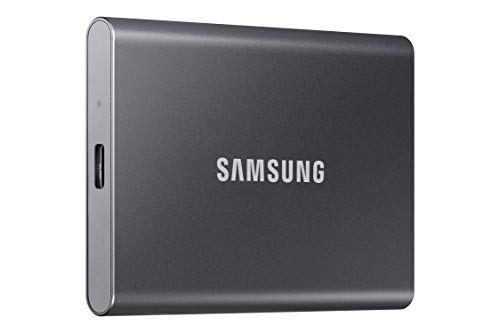
under $250 on Amazon
Tools You'll Need
Windows Tools
-
→
CrystalDiskMark Speed benchmarking
-
→
CrystalDiskInfo SMART health monitoring
-
→
H2testw Capacity verification
-
→
USB Device Tree Viewer Interface checking
Mac Tools
-
→
Blackmagic Disk Speed Test Free on App Store
-
→
F3 (via Homebrew) Capacity verification
-
→
DriveDx SMART monitoring (paid)
-
→
System Information Built-in interface checker
Physical Testing Kit
For serious buyers, keep these items handy:
Kitchen Scale
Verify drive weight
USB-C Cable
Known good quality
Laptop w/ TB4
For max speed tests
USB Flash Drive
With test software
Ready to Buy?
Armed with this testing knowledge, you can confidently evaluate any external SSD. Always run at least the capacity verification and SMART health check before handing over money.