
Buying a used iPad or Android tablet can save you hundreds of dollars, but the tablet market has its share of pitfalls. From undisclosed water damage to worn batteries and Activation Locked devices, this comprehensive guide will help you thoroughly test any used tablet before committing to a purchase. Whether you're looking at an iPad Pro, iPad Air, Samsung Galaxy Tab, or any other tablet, these testing procedures will protect your investment.
Pro Tip: Always ask for the original purchase receipt and any AppleCare+ documentation. This proves legitimate ownership and helps with warranty transfers.
Before the Meeting
Proper preparation before meeting the seller can save you a wasted trip and potential headaches. Start by gathering critical information about the device remotely.
Request These Details First
- Serial number: Verify the model, storage capacity, and check Activation Lock status before meeting
- Original packaging: Indicates original owner, not a flipper
- Battery health percentage: iPads show this in Settings > Battery > Battery Health
- Reason for selling: Upgrading is normal; "just don't use it" may hide issues
Verify the Serial Number
Use Apple's Check Coverage page (checkcoverage.apple.com) to verify the serial number. This confirms the exact model, storage capacity, and warranty status. If the seller's description doesn't match Apple's database, walk away.
Activation Lock Check
Activation Lock is the single most important check when buying a used iPad. A locked device is essentially worthless unless the original owner removes it. There is no workaround for Activation Lock on newer devices.
Critical Warning: Never purchase an iPad that hasn't been signed out of iCloud and shows the "Hello" setup screen. Locked devices cannot be used without the original owner's credentials.
Verification Steps
- 1 Have the seller completely erase the device in front of you (Settings > General > Transfer or Reset iPad > Erase All Content and Settings)
- 2 Wait for the iPad to restart and show the initial "Hello" setup screen
- 3 Begin the setup process until you reach the WiFi connection screen
- 4 Connect to WiFi and continue setup - if Activation Lock appears, the device is locked
- 5 If no lock appears, you can safely complete the purchase
Physical Inspection
Tablets are more prone to drops and bends than phones due to their size. A thorough physical inspection reveals damage history and potential internal problems.
Frame and Chassis Inspection
iPad Pro models, especially larger ones, can bend from pressure in bags or improper storage. Place the iPad flat on a table and check for any wobble or gap between the device and surface. Look along the edges at eye level for any bend or warp in the chassis.
Check These Areas
- • All four corners for dents or cracks
- • Volume buttons and power button
- • Charging port for debris or damage
- • Smart Connector pins (if applicable)
- • Speaker grilles for blockages
- • SIM tray (cellular models)
Warning Signs
- • Screen lifting from frame (battery swelling)
- • Misaligned buttons or ports
- • Different colored screws (repair indicator)
- • Dust under the screen
- • Rattling when shaken gently
- • Adhesive residue from screen protectors
Water Damage Indicators
Unlike iPhones, iPads don't have easily accessible LCI (Liquid Contact Indicators). However, you can check for water damage signs: corrosion around ports, water marks under the screen, speaker distortion, or erratic touch behavior. Ask the seller directly about any liquid exposure.
Screen Testing
iPad displays range from standard LCD to ProMotion mini-LED. Thoroughly testing the screen ensures you're getting the visual quality you're paying for and catches defects that might worsen over time.
Dead Pixel and Display Defect Test
Use a dead pixel test app or display solid color images (pure red, green, blue, white, and black) in fullscreen. Examine every area of the screen carefully in each color. Dead pixels appear as dots that don't change color, while stuck pixels show a single color regardless of the displayed image.
Display Tests to Perform
- • Backlight bleed: Display black image in dark room - look for light leaking from edges
- • Uniformity: Gray image should look consistent across entire screen
- • Color accuracy: Compare photos between the tablet and a known-good display
- • ProMotion test: On supported iPads, scrolling should feel silky smooth
- • True Tone: Enable/disable in Display settings and verify color temperature changes
Touch Screen Responsiveness
Open the Notes app and use your finger to draw continuous lines across every part of the screen. The lines should be smooth without gaps, jumps, or areas where touch doesn't register. Pay special attention to screen edges and corners, which often fail first after drop damage.
Test multi-touch by using two fingers to pinch-zoom on photos and maps. The zoom should be smooth and responsive without jumpy behavior. Try rotating an image - the rotation should follow your fingers precisely.
Battery Health Assessment
iPad batteries degrade over charge cycles just like iPhones. Since iPads are often used for extended periods, battery health significantly impacts the ownership experience. A degraded battery means frequent charging and potentially reduced performance.
Checking Battery Health on iPad
Go to Settings > Battery > Battery Health (iPadOS 15.4 and later). This shows the Maximum Capacity percentage. New iPads show 100%, and anything above 80% is considered healthy by Apple's standards. Below 80%, Apple considers the battery consumed and performance may be affected.
| Battery Health | Condition | Price Impact |
|---|---|---|
| 95-100% | Excellent - Nearly new | Full price justified |
| 85-94% | Good - Normal wear | Negotiate 5-10% off |
| 80-84% | Fair - Moderate use | Negotiate 15-20% off |
| Below 80% | Service recommended | Factor in $99+ replacement |
Practical Battery Testing
If the seller allows, run a demanding task like video playback or a game for 15-20 minutes. Note the battery percentage before and after. Excessive drain during normal use indicates battery degradation beyond what the health percentage shows.
Apple Pencil Compatibility & Testing
If you plan to use Apple Pencil, verify the iPad supports your preferred generation and test the functionality thoroughly. Apple Pencil compatibility varies by iPad model, and a damaged digitizer can affect pencil performance even when finger touch works fine.
Apple Pencil 1st Gen Compatible
- • iPad (6th-10th gen)
- • iPad Air (3rd gen)
- • iPad mini (5th gen)
- • iPad Pro 12.9" (1st-2nd gen)
- • iPad Pro 10.5"
- • iPad Pro 9.7"
Apple Pencil 2nd Gen / Pro Compatible
- • iPad Pro 11" (all generations)
- • iPad Pro 12.9" (3rd gen+)
- • iPad Air (4th gen+)
- • iPad mini (6th gen)
- • Apple Pencil Pro on 2024 models
Testing Apple Pencil Functionality
If the sale includes an Apple Pencil, test these features: tilt sensitivity by drawing at various angles, pressure sensitivity by varying your line weight, double-tap (2nd gen) to switch tools, magnetic attachment and charging (2nd gen), and palm rejection while writing naturally.
Tip: Even if the iPad doesn't include an Apple Pencil, test pencil support by bringing your own or asking the seller to demonstrate. This verifies the digitizer works correctly for pressure and tilt detection.
Performance Testing
Modern iPads are incredibly capable, but a problematic unit may show performance issues. Testing processing power and thermal behavior helps identify potential hardware problems.
Benchmark Testing
Download Geekbench 6 from the App Store and run both CPU and GPU benchmarks. Compare results to published scores for that specific iPad model. Scores significantly below average (more than 10-15% lower) may indicate thermal issues, a degraded battery limiting performance, or other hardware problems.
Expected Geekbench 6 Scores (Approximate)
- • iPad Pro M4: Single ~3700, Multi ~14500
- • iPad Pro M2: Single ~2600, Multi ~10000
- • iPad Air M2: Single ~2600, Multi ~10000
- • iPad (10th gen): Single ~1700, Multi ~4500
- • iPad mini 6: Single ~2100, Multi ~5200
Thermal Testing
Run a demanding game or benchmark for 10 minutes and feel the device temperature. Warmth is normal, but excessive heat (uncomfortable to hold) suggests thermal management issues. iPads will throttle performance when too hot, which compounds over time.
Cameras & Sensors
While tablets aren't primarily cameras, testing the cameras and sensors ensures all hardware functions correctly. Damaged sensors can indicate drop damage or water exposure.
Camera Testing
- Rear camera: Take photos and videos at maximum resolution, check for focus issues or spots
- Front camera / Center Stage: Test FaceTime, verify Center Stage tracking (supported models)
- Flash/LED: Test flashlight mode and flash during photo capture
- LiDAR (Pro models): Use Measure app to verify LiDAR scanner functions
Sensor Testing
Test Face ID (supported models) by setting it up and verifying it works at various angles. Test Touch ID (if applicable) by registering a fingerprint. Check auto-brightness by covering the light sensor and watching brightness adjust. Test the accelerometer and gyroscope by rotating the device and verifying screen orientation changes.
Connectivity Tests
Wireless connectivity is essential for tablets. Test all radios to ensure you'll have reliable connections for daily use.
WiFi Testing
Connect to the seller's WiFi network and run a speed test using Speedtest by Ookla. Compare results to what the seller's internet speed should be. Poor WiFi performance might indicate a damaged antenna. Walk to different areas if possible to test range and stability.
Bluetooth Testing
Pair a Bluetooth device like headphones or a keyboard. Test audio playback for headphones, verifying stereo sound and no dropouts. For keyboards, test typing responsiveness and special function keys. Check that the connection maintains stability at reasonable distances (up to 30 feet).
Speakers and Microphones
- • Play music through all speakers and verify all fire (iPad Pro has 4 speakers)
- • Test at low and high volumes for distortion or rattling
- • Record a voice memo and play it back to test microphones
- • Make a FaceTime call to test real-time audio quality
Cellular Model Considerations
Cellular iPads offer internet connectivity anywhere but require additional testing. Verify the cellular hardware works and check for carrier locks.
Carrier Lock Status
Check Settings > General > About and look for "Carrier Lock." It should say "No SIM restrictions" for an unlocked iPad. Carrier-locked iPads can only use that specific carrier's network, limiting your options.
Cellular Testing
- Insert your SIM card and verify it recognizes the carrier
- Disable WiFi and verify cellular data works
- Run a speed test on cellular to verify radio performance
- Test eSIM activation if you plan to use eSIM
Note: Cellular models also include GPS hardware. WiFi-only models use less accurate location services. Test GPS in a mapping app if accurate location is important to you.
Android Tablet Considerations
If you're considering a Samsung Galaxy Tab, Lenovo Tab, or other Android tablet, many tests are similar but with platform-specific differences.
Android-Specific Checks
- Factory Reset Protection (FRP): Android's equivalent of Activation Lock - ensure it's removed
- Samsung Knox: Enterprise tablets may have Knox enrollment that restricts usage
- Software update support: Check if the tablet still receives security updates
- S Pen (Samsung): Similar tests as Apple Pencil for pressure, tilt, and button functionality
Battery Health on Android
Android doesn't show battery health natively like iPadOS. Use apps like AccuBattery or check Samsung Members app (for Galaxy tablets) to estimate battery condition. You can also use ADB to get detailed battery statistics if you're comfortable with command-line tools.
2026 Used Tablet Pricing Guide
Fair pricing depends on model, storage, cellular capability, and condition. Use these ranges as a starting point for negotiations.
| Model | Excellent | Good | Fair |
|---|---|---|---|
| iPad Pro 13" M4 (256GB) | $900-1000 | $800-900 | $700-800 |
| iPad Pro 11" M4 (256GB) | $700-800 | Under $500 | Under $500 |
| iPad Air M2 (256GB) | Under $500 | Under $500 | Under $500 |
| iPad 10th Gen (64GB) | Under $500 | Under $500 | $200-250 |
| iPad mini 6 (64GB) | Under $500 | Under $500 | Under $500 |
| Samsung Galaxy Tab S9 Ultra | $750-850 | Under $500 | Under $500 |
| Samsung Galaxy Tab S9+ | Under $500 | Under $500 | Under $500 |
Add $100-150 for cellular models. Prices vary by region and market conditions. Always verify current market rates on eBay sold listings and Swappa.
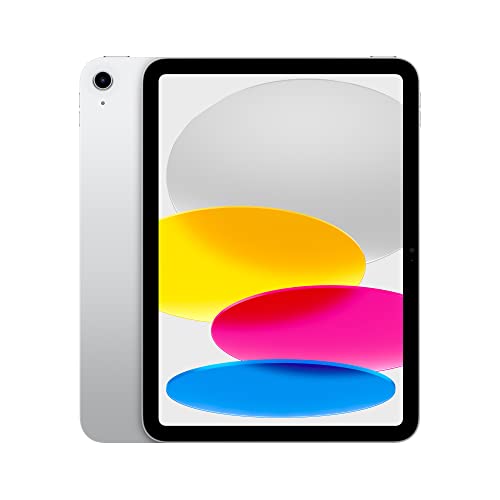
under $500 on Amazon
Final Inspection Checklist
Use this interactive checklist during your inspection. Check off each item as you verify it. All items should be checked before completing your purchase.
Recommended iPad Accessories
Protect your new tablet with quality accessories from trusted brands.