Touchscreen Test

Test your touchscreen for dead spots, multi-touch capability, and responsiveness

Affiliate Disclosure: This page contains affiliate links. We may earn a commission if you purchase through these links at no additional cost to you. We only recommend products we've researched or believe will help with monitor testing.

Recommended Testing Equipment

Recommended: Razer BlackWidow V4 Pro Keyboard

Price Range: $180-200

Razer BlackWidow V4 Pro Wired Mechanical Gaming Keyboard

$182.49 on Amazon

View on Amazon

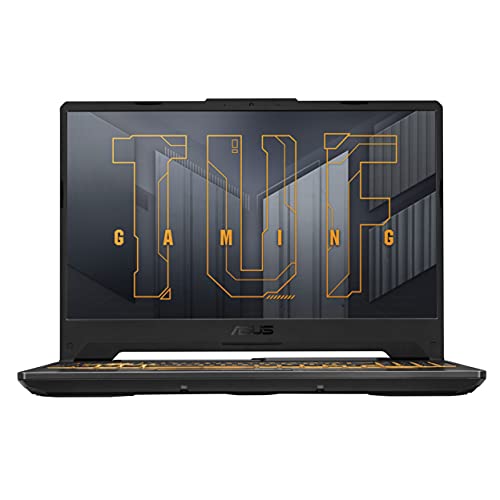
Recommended: ASUS TUF Gaming F15 Laptop

Price Range: $750-850

ASUS TUF Gaming F15 15.6-inch 144Hz Gaming Laptop

$794.98 on Amazon

View on Amazon
Touch Points: 0
Max Touches: 0
Screen Coverage: 0%

Touch anywhere to begin

Draw patterns to test all areas of your screen

• Single touch: Blue dot appears

• Multi-touch: Different colored dots

• Drag to draw and test response

• Try pinch, zoom, and rotate gestures

How to Test Your Touchscreen

What to Test:

  • • Touch response in all areas
  • • Multi-touch capability (2+ fingers)
  • • Edge and corner sensitivity
  • • Gesture recognition (pinch, swipe)
  • • Touch accuracy and precision

Common Issues:

  • • Dead spots (no response)
  • • Ghost touches (false inputs)
  • • Poor edge detection
  • • Delayed response
  • • Inaccurate touch registration