Tablet Drawing & Stylus Test
Test stylus pressure sensitivity, tilt, accuracy, and palm rejection.
Pressure Sensitivity Test
Draw on the canvas below with varying pressure. Line thickness should change smoothly.
Light pressure should give thin lines, heavy pressure should give thick lines. If all lines are the same thickness, pressure sensitivity may not be working.
Accuracy & Parallax Test
Try to draw precisely on the target points. The stylus tip should match the on-screen position exactly.
Tilt Detection Test
Tilt your stylus while drawing. The tilt values should change.
Palm Rejection Test
Rest your palm on the canvas while drawing with the stylus. Only stylus input should register.
Complete Evaluation Checklist
Stylus Quality
Display Quality
Software Compatibility
Physical
Complete Guide to Testing Drawing Tablets
Why Drawing Tablet Testing Is Essential
Drawing tablets are precision input devices where subtle issues significantly impact the creative experience. Pen pressure sensitivity, tracking accuracy, and latency all affect how naturally the tablet translates your strokes to digital art. Used tablets may have worn surfaces, damaged pens, or degraded sensors that compromise performance. Our testing tools help identify these issues before purchase.
Used drawing tablets offer significant savings, especially for premium brands like Wacom. A gently used professional tablet often costs half or less of retail price. However, heavy use wears tablet surfaces and pen nibs, potentially affecting performance. Thorough testing ensures you're getting a functional creative tool, not a worn-out device.
Understanding Pressure Sensitivity
Pressure sensitivity determines how the tablet interprets the force of your strokes. More pressure levels theoretically provide finer control over brush dynamics like size and opacity. Modern tablets offer two thousand to eight thousand pressure levels, though differences above two thousand are subtle.
The pressure curve matters more than maximum levels. A well-implemented two thousand level tablet may feel better than a poorly calibrated eight thousand level tablet. Test light strokes for thin lines and heavy strokes for thick lines. The transition should feel smooth and predictable.
Tracking Accuracy and Latency
Tracking accuracy determines how precisely the cursor follows your pen movements. Draw slow diagonal lines and examine them for wobble or stepping. Quality tablets produce smooth diagonals, while lower-end or damaged tablets may show visible jitter.
Latency, the delay between pen movement and screen response, affects how natural drawing feels. Lower latency creates a more direct connection between pen and digital stroke. Test by making quick movements and observing how closely the cursor follows.
Pen Condition Assessment
The pen is subject to significant wear and may be the most common failure point in used tablet purchases. Examine the pen tip for wear, which appears as flattening or mushrooming of the nib. Worn nibs should be replaced, as they affect tracking accuracy and can scratch the tablet surface.
Test pen buttons if present for proper function. Buttons should click firmly without sticking or intermittent operation. Check the pen barrel for cracks or damage that might affect grip or internal components.
Surface Condition and Texture
Tablet surfaces wear with use, developing smooth spots or scratches that affect the drawing experience. Examine the surface under lighting that reveals imperfections. Smooth worn areas may feel slippery compared to the rest of the surface.
Screen protectors or overlays can refresh a worn surface on some tablets. Research whether replacement surfaces are available for the specific model before purchase.
Frequently Asked Questions
How long do drawing tablets last?
Quality drawing tablets typically last five to ten years or more. Pens and nibs wear faster and may need replacement every one to three years depending on usage. Surface wear accumulates over time but can often be addressed with replacement sheets.
Do I need a display tablet?
Display tablets allow drawing directly on screen, which some find more intuitive. Traditional screenless tablets cost less and may actually be preferable for some artists. Try both types if possible before deciding.
What size tablet should I get?
Tablet size should roughly match your monitor. Large tablets paired with small monitors require excessive hand movement. Medium tablets around ten to twelve inches work well for most users with typical monitor sizes.
Are cheaper brands worth considering?
Budget brands like Huion and XP-Pen have improved significantly and offer good value. However, Wacom still provides superior build quality, driver support, and reliability. A used premium Wacom may outperform a new budget tablet at similar price points.
Affiliate Disclosure: We may earn a commission from purchases at no extra cost to you.
Recommended Drawing Tablets
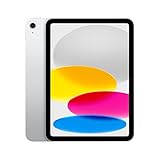
Apple iPad Pro 12.9" + Apple Pencil 2
Best overall drawing experience with ProMotion display
Price: $1100-1500
$429.98
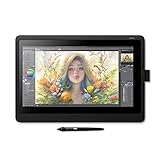
Wacom Cintiq 16
Professional pen display with 8192 pressure levels
Price: $600-700
$549.00