Screen flickering can cause eye strain, headaches, and productivity loss. This troubleshooting guide helps you find the root cause quickly and walks through fixes for monitors, laptops, and mobile devices.
⚠️ Immediate Actions for Severe Flickering
- If flickering causes immediate eye pain or headaches, stop using the device
- Reduce screen brightness to minimum comfortable level
- Enable blue light filters or dark mode temporarily
- Take breaks every 10 minutes until issue is resolved
Understanding Screen Flickering: Types & Causes

PWM Flickering (Most Common)
Pulse Width Modulation (PWM) dims screens by rapidly turning the backlight on and off at frequencies between 100-1000Hz.
- Symptoms: Subtle flicker at low brightness, eye fatigue
- Frequency: 100-240Hz (budget displays), 1000Hz+ (premium)
- Detection: Visible through smartphone camera
- Solution: Higher brightness, PWM-free monitors
Refresh Rate Issues
Mismatched refresh rates between display and content source cause visible stuttering and flickering.
- Symptoms: Stuttering motion, horizontal lines
- Common causes: 59.9Hz vs 60Hz mismatch
- Gaming: VSync disabled, FPS fluctuations
- Solution: Proper refresh rate settings, adaptive sync
What to test, and what to replace it with
These tools exist to tell you whether a screen is worth keeping. If it is not, these are the panels worth running the same tests on instead.
 LG C4 65 in OLED evo
The panel most of these test patterns are written against. OLED is where the dead-pixel and uniformity tests actually matter.
Check price on Amazon → Samsung S90F 65 in OLED
The main alternative to the C4 at the same size, and the one worth running the same tests on before you keep it.
Check price on Amazon →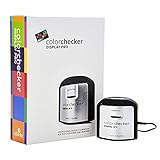 Calibrite Display Pro Colorimeter
Test patterns tell you something is wrong. A colorimeter tells you by how much, and fixes it.
Check price on Amazon → Dell UltraSharp U2722D
The safe QHD desk monitor when a test turns up a panel you do not want to keep.
Check price on Amazon →As an Amazon Associate we earn from qualifying purchases, at no extra cost to you. Prices change, so check before buying.
5-Minute Flicker Diagnostic Test
🔍 Start Here: Identify Your Flicker Type
Follow this step-by-step test to determine the exact cause of your screen flickering.
Start Diagnostic Tool →Step 1: Visual Inspection Test
What to Look For:
- Constant vs intermittent flickering
- Full screen vs partial area flickering
- Brightness-dependent vs constant intensity
- Color-specific flickering (red, blue, green)
Testing Conditions:
- Test at 25%, 50%, 75%, 100% brightness
- Try different content (solid colors, videos, text)
- Test with external monitor (laptops)
- Check in different applications
Step 2: Smartphone Camera Test
Use your phone's camera to detect PWM flickering invisible to the naked eye.
Camera Test Procedure:
- Open smartphone camera and point at screen
- Set screen to 50% brightness with white background
- Look for horizontal rolling bands in camera view
- Test at different brightness levels
- Compare with known PWM-free display
Monitor Flickering: Solutions by Cause
🔴 PWM Flickering Solutions
Immediate Fixes:
-
✓
Increase brightness to 80-100%: Reduces PWM duty cycle
-
✓
Enable DC dimming (if available): Check monitor OSD settings
-
✓
Use bias lighting: LED strip behind monitor reduces perceived flicker
-
✓
Adjust viewing angle: Slightly off-center viewing can help
Long-term Solutions:
-
⚠
Upgrade to PWM-free monitor: Look for "flicker-free" certification
-
⚠
Choose high PWM frequency: 1000Hz+ models reduce sensitivity
-
⚠
Consider OLED displays: Per-pixel dimming eliminates PWM
PWM-Free Monitor Recommendations:
ASUS VP249HE, AOC 24G2
LG 27GL850, Dell S2721DGF
ASUS PG279QM, Samsung Odyssey G7
🔵 Display Driver Problems
Windows Driver Solutions:
- Update graphics drivers: Use DDU to clean install latest drivers
- Roll back recent driver: If flickering started after update
- Disable hardware acceleration: In browsers and applications
- Check Windows Update: Install pending display driver updates
- Reset display settings: Use Windows built-in troubleshooter
Advanced Driver Troubleshooting:
- Boot into Safe Mode to test without drivers
- Use System Restore to previous working state
- Disable Windows automatic driver updates
- Install manufacturer-specific control software
🟢 Refresh Rate Configuration
Windows Settings:
- Right-click desktop → Display settings
- Click "Advanced display settings"
- Select proper refresh rate (usually highest available)
- Apply and test for 30 seconds
- Use "Keep changes" if flicker improves
Graphics Control Panel:
- NVIDIA: Control Panel → Change Resolution
- AMD: Radeon Settings → Display
- Intel: Graphics Command Center → Display
- Set refresh rate to match monitor's native frequency
Laptop Screen Flickering: Specific Solutions
Hardware-Related Issues
Loose Display Cable
Most common laptop flicker cause (43% of cases)
- Flicker increases when opening/closing lid
- Pressing near screen hinges affects flicker
- External monitor works perfectly
- Professional repair recommended ($80-150)
Backlight Inverter Failure
Common in older laptops (3+ years)
- Flicker at low brightness only
- Sometimes accompanied by high-pitch whine
- Replacement cost: $50-120
Software Solutions
Power Management
- Disable adaptive brightness in Windows
- Set power plan to "High Performance"
- Disable USB selective suspend
- Update chipset drivers
BIOS/UEFI Settings
- Disable Intel SpeedStep/AMD Cool'n'Quiet
- Set video memory to maximum
- Disable power saving features
- Update BIOS to latest version
Laptop Flicker Testing Procedure
External Monitor Test
- Connect external monitor via HDMI/DisplayPort
- Set to "Extend" or "Second screen only"
- Test for flickering on external display
- If external is fine: internal display issue
- If both flicker: graphics driver/hardware issue
Safe Mode Test
- Boot into Windows Safe Mode
- Test for flickering with basic drivers
- If no flicker: driver issue confirmed
- If still flickers: hardware problem likely
Mobile Device Screen Flickering
Smartphone Flicker Solutions
iOS (iPhone) Solutions:
- Disable Auto-Brightness: Settings → Accessibility → Display
- Turn off True Tone: Settings → Display & Brightness
- Disable Reduce Motion: Settings → Accessibility → Motion
- Reset Display Settings: Settings → General → Reset
- Update iOS: Settings → General → Software Update
Android Solutions:
- Disable Adaptive Brightness: Settings → Display
- Turn off Dark Mode: Test if flicker persists
- Disable Hardware Overlays: Developer Options
- Safe Mode Test: Hold power + volume down
- Factory Reset: Last resort for software issues
⚠️ Hardware Failure Signs
- Flicker persists in Safe Mode and after factory reset
- Green or purple tinting accompanies flicker
- Flicker increases with phone heating up
- Dead zones or lines appear on screen
Action: Contact manufacturer or authorized repair center.
Tablet-Specific Issues
iPad Flickering
- Check for iOS updates (Settings → General → Software Update)
- Force restart: Hold Home + Power for 10 seconds
- Disable background app refresh for problematic apps
- Reset all settings (preserves data)
Android Tablets
- Clear system cache partition (recovery mode)
- Disable live wallpapers and animations
- Check for manufacturer-specific display settings
- Test with different charging cables (power-related flicker)
Preventing Future Flickering Issues
Proactive Measures
-
✓
Regular driver updates: Set up automatic graphics driver updates
-
✓
Power quality: Use UPS or surge protector for displays
-
✓
Temperature control: Ensure proper ventilation around devices
-
✓
Cable management: Secure all display cables properly
Purchase Considerations
-
🔍
Research before buying: Check for PWM-free certification
-
🔍
Test period: Use return window to test for flicker sensitivity
-
🔍
Warranty coverage: Ensure flicker issues are covered
-
🔍
Professional reviews: Look for flicker testing in reviews
When to Contact Support or Repair Services
Immediate Professional Help Required
- • Flickering accompanied by burning smell or unusual heat
- • Sudden onset of severe flickering in new device (<30 days)
- • Flickering causes physical symptoms (seizures, severe headaches)
- • Multiple devices flickering simultaneously (electrical issue)
Warranty Claims
Documentation Needed:
- Video evidence of flickering
- Screenshots of settings tried
- List of troubleshooting steps performed
- Purchase receipt and warranty information
Success Tips:
- Use technical terminology (PWM, refresh rate)
- Emphasize impact on productivity/health
- Reference our diagnostic test results
- Be persistent but professional
Repair Cost Guidelines
Typical Repair Costs:
- Monitor backlight replacement: $80-200
- Laptop display cable: $60-120
- Smartphone screen: $150-400
- Graphics card repair: $200-500
Cost vs Replace Decision:
- Repair >50% device value: Consider replacement
- Out-of-warranty devices >3 years old
- Multiple concurrent issues present
- Technology significantly outdated
Stop Screen Flickering Today
Don't let screen flickering impact your productivity or health. Use our diagnostic tool to identify the exact cause and implement the right solution.
🏆 5-minute diagnosis